
How do I login to my account?

Your online portal is the primary way that we communicate with you.

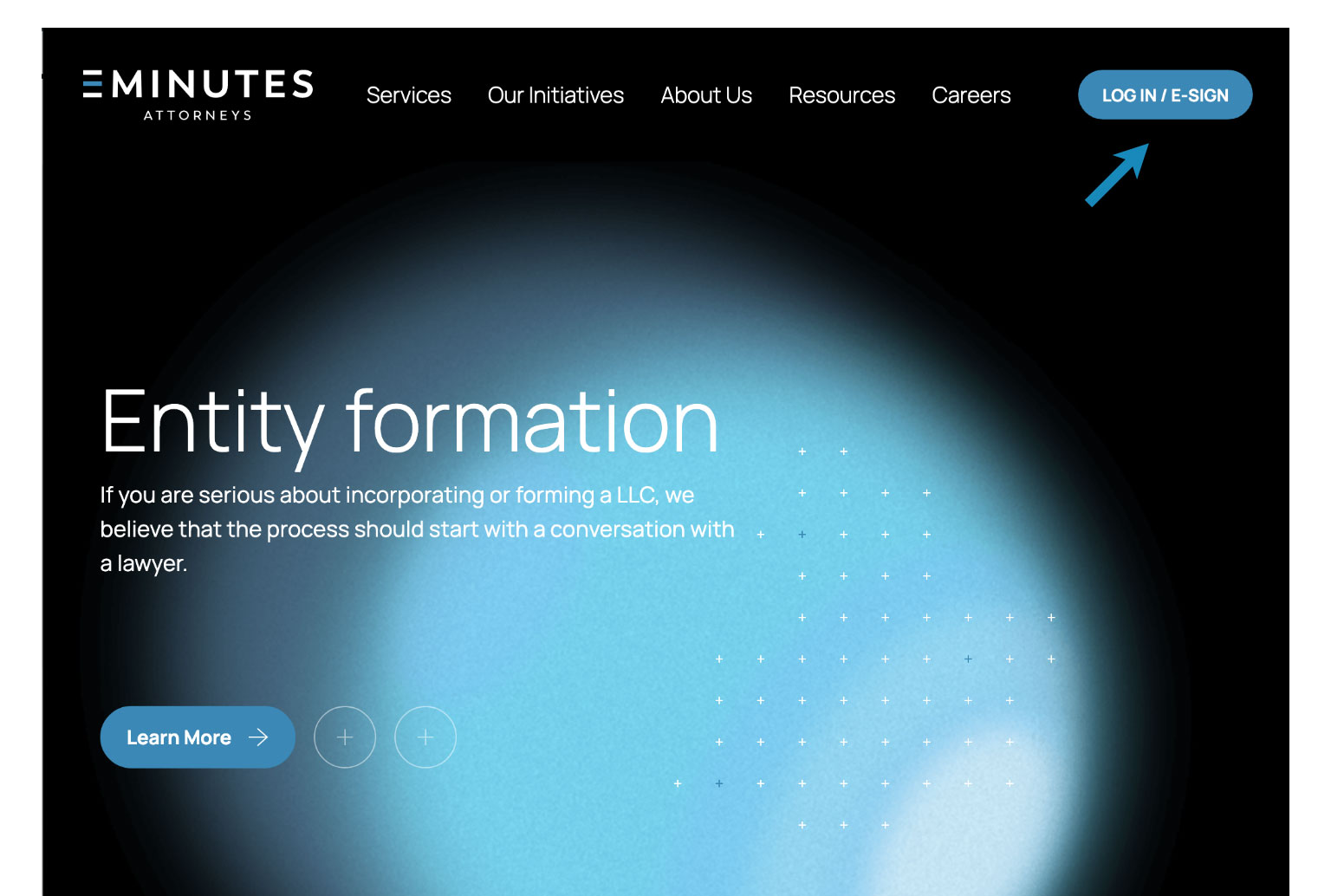
To login to our online portal, please visit eMinutes.com  and click the “Log In/E-Sign” button in the top right corner of the screen.
On the Log in page, enter your email and password and press Enter/Return on your keyboard.  Alternatively, you can log into your portal using your Google credentials.
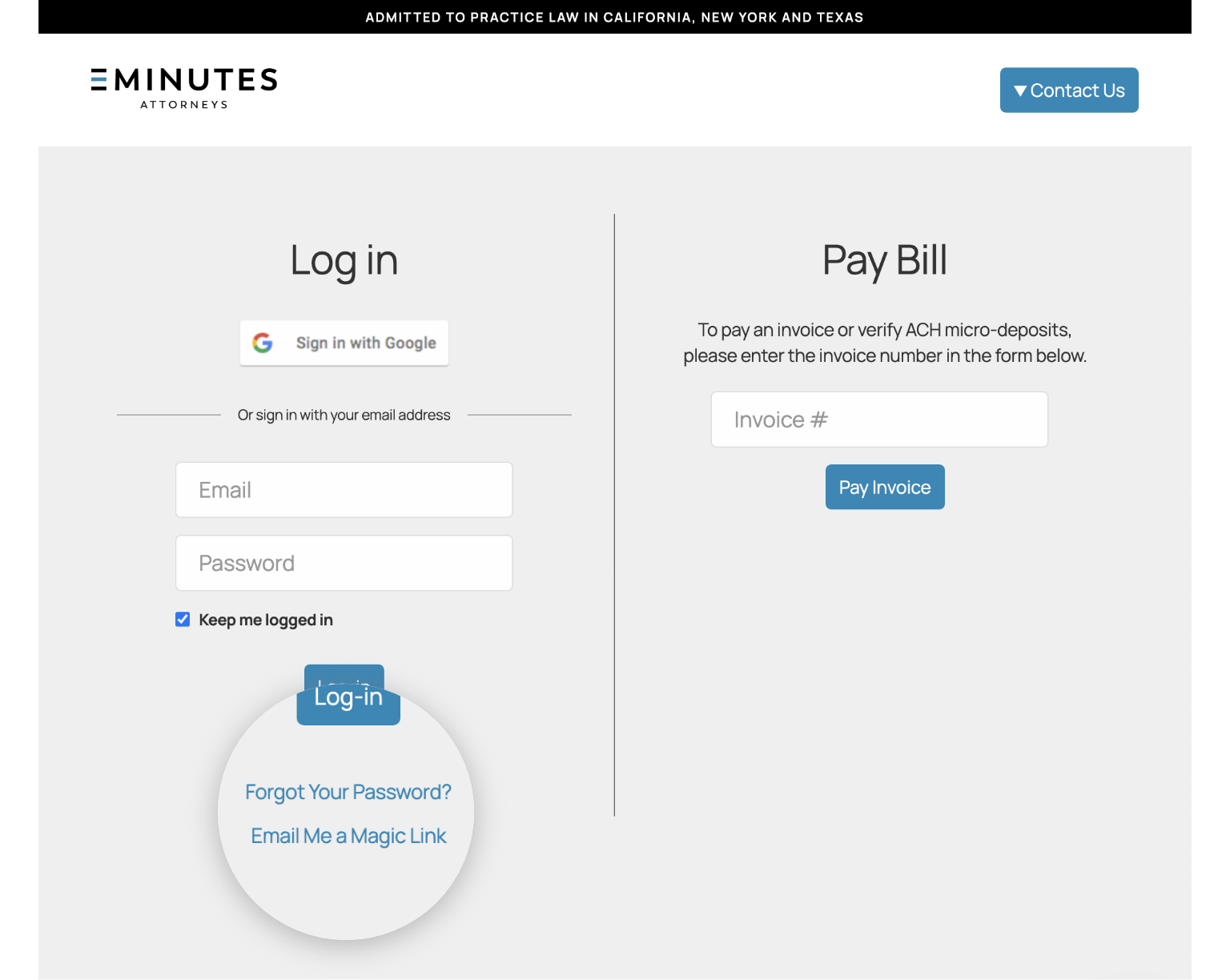
If you do not know your password, you can reset your password or request a “Magic Link”. If you have not previously logged in, you will need to set a password by clicking the “Forgot Your Password” link.

Learn more

What is a Magic Link?

Magic links are a single-use link sent to the EMINUTES users during the authentication process. They allow users to conveniently and securely access our services without a password. The process of authentication with a magic link involves the user providing their email, then clicking the “magical link” to log in.

How do I upload documents?

1. Once you are logged in, click on the “Upload Documents” link.

2. Select an entity from the dropdown menu.

3. Click the “Add Documents” button to upload a document from your computer.

4. Click “Submit”.

We will confirm receipt all documents uploaded through the portal. If you have trouble with the upload process, please contact us.

How can I access my documents?

You can access your entity’s complete document archive in the portal. Click on the Documents link from the entity list in the Companies tab of your online portal.

EMINUTES - Documents Link

A documents listing will appear in a pop up window. Documents are organized by type (Annual Consents, Corporate Resolutions, Filings, Stock Ledger and other Key Documents. Click on the links to access and download each document.

EMINUTES - Documents Listing

How do I link my Google credentials?

1. Sign in with the “Sign in with Google” link.

2. Select the Google account that you would like to link to your EMINUTES account.

3. If your Google account is not linked to our system, you will be asked to associate your Google account with the email address that you are using in our system. You will only be asked to do this once.

4. Confirm your credentials in the next screen.

After linking your Google credentials to our system, you can link the account in your online portal in the “My Profile” section.