
How do I enroll a LLC or Corporation?
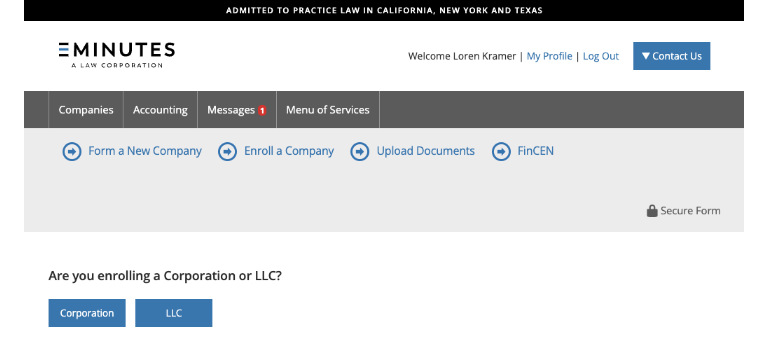
From your portal, you can enroll an existing corporation or LLC into our entity management service. In this guide, we will demonstrate how to enroll a LLC. If you are enrolling a corporation, select “corporation” as the entity type and follow the prompts.
Complete the enrollment process
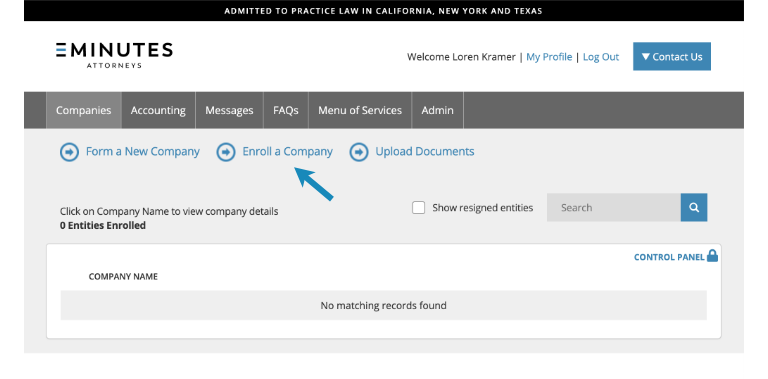
1. Log in to your online portal (For instructions on how to log in, please click here). Once logged in, from the dashboard select “Enroll a Company”.
2. Select the entity type that is appropriate to your entity.
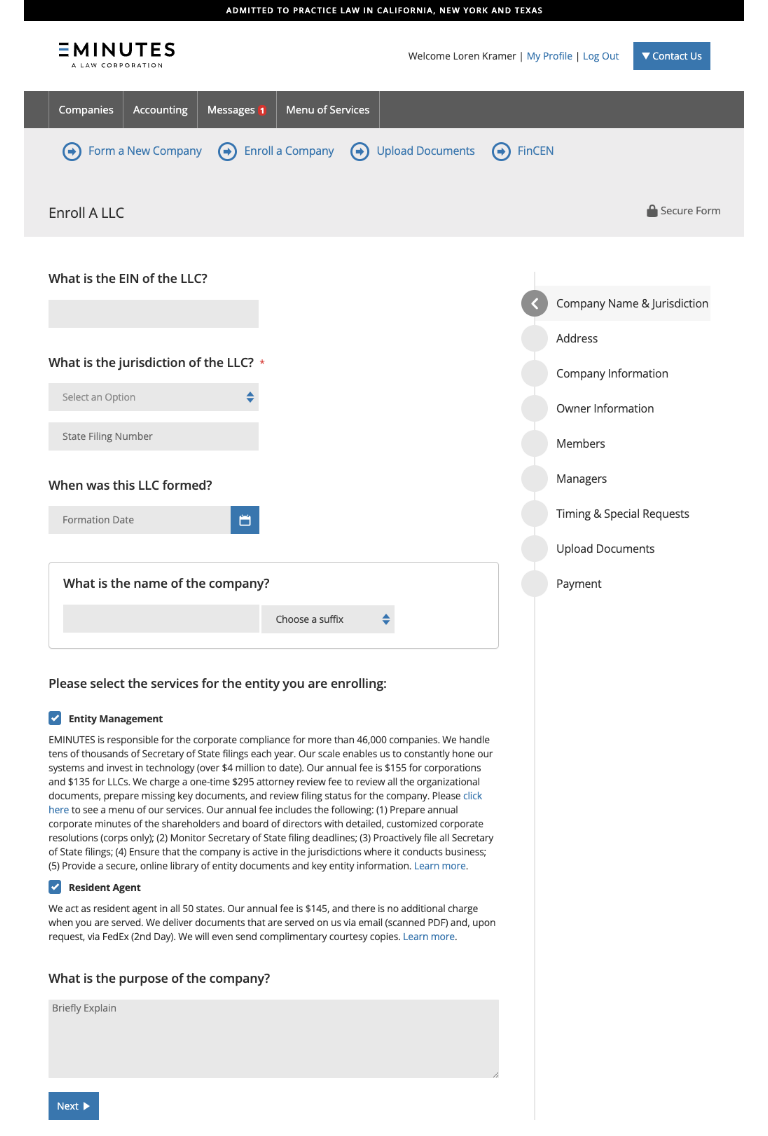
3. On the following screen, enter the EIN, jurisdiction, date of formation and company name. Review and select the desired service(s). Finally, provide a brief description of the purpose of your company. Click “Next” when done.
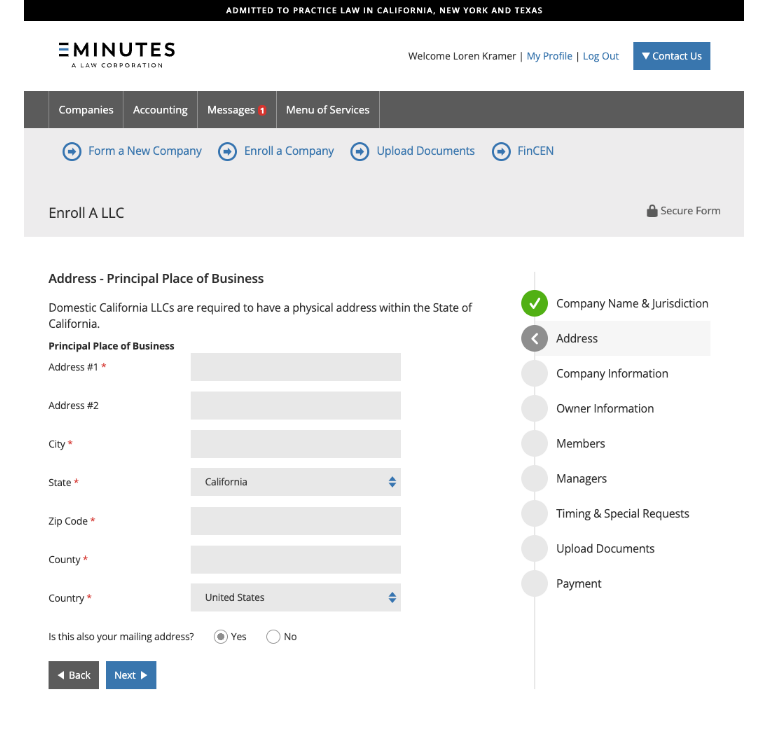
4. Enter the address of the Principal Place of Business and the mailing address.
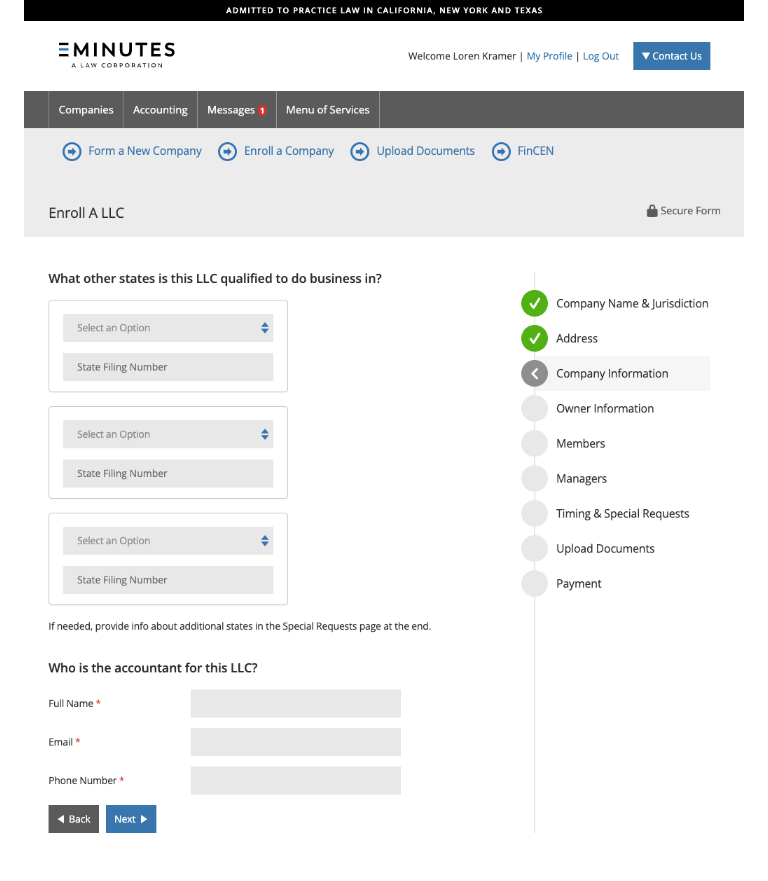
5. On the next screen indicate all other states where the company is qualified to do business. If you require fields for more than 3 states, please use the Special Requests field at the end of this application to provide that information. Provide your CPA’s name and contact information.
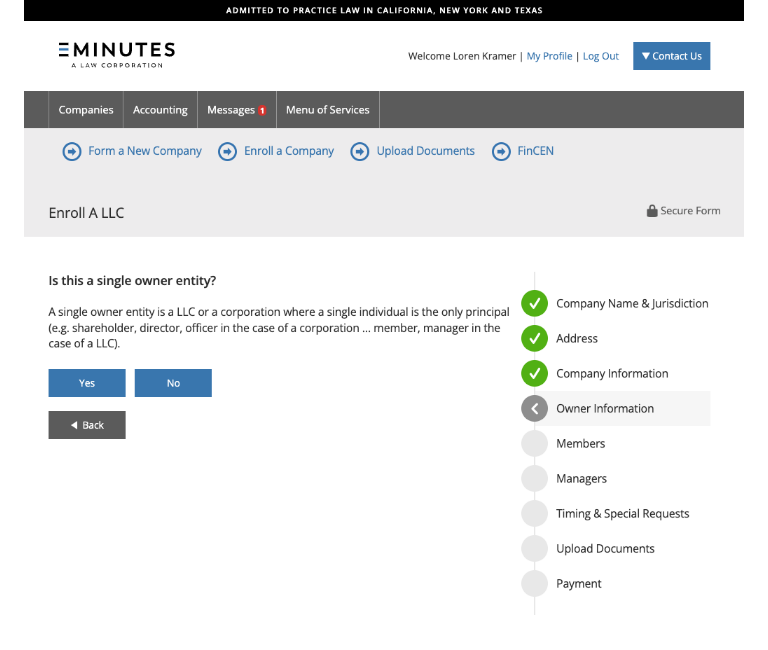
6. Indicate if your entity is owned by an individual. If so, provide the name, social security number and marital status of the owner in the subsequent screen. If your entity is not a single owner entity, enter the requested information for each owner in the provided fields.
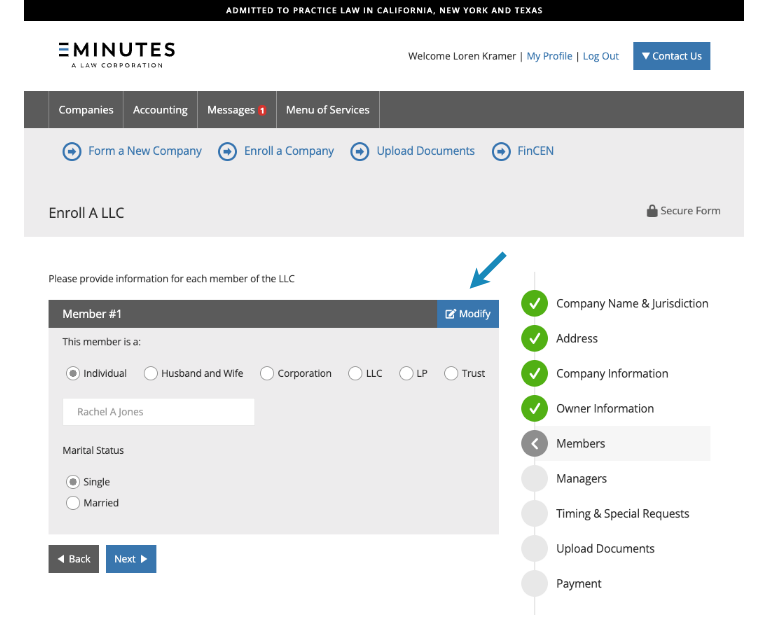
7. Enter the name of each Member. To add additional Members, click the “Modify” button to access the “Add Member” function.
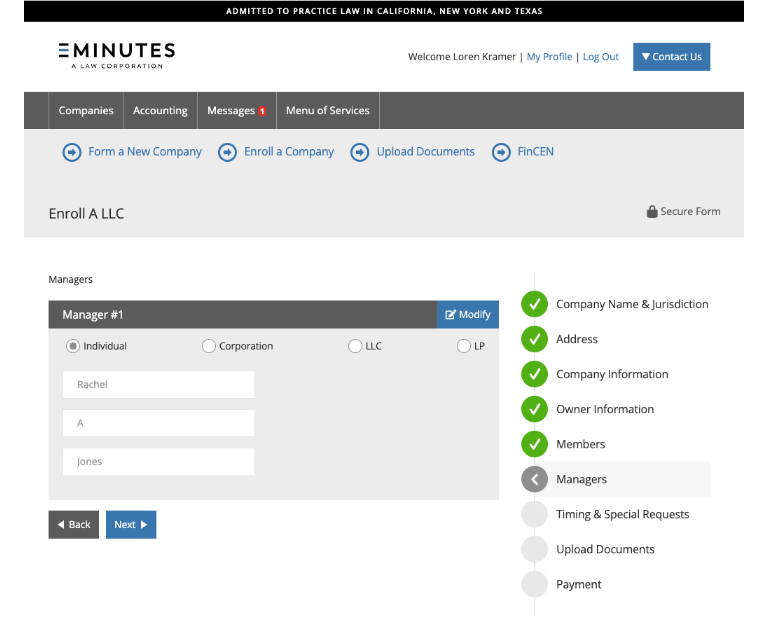
8. Repeat the process for each Manager/Officer.
9. On this screen, please provide our team with any additional information about your entity. You may also add the contact information for any other advisors that you would like to include in all correspondence.
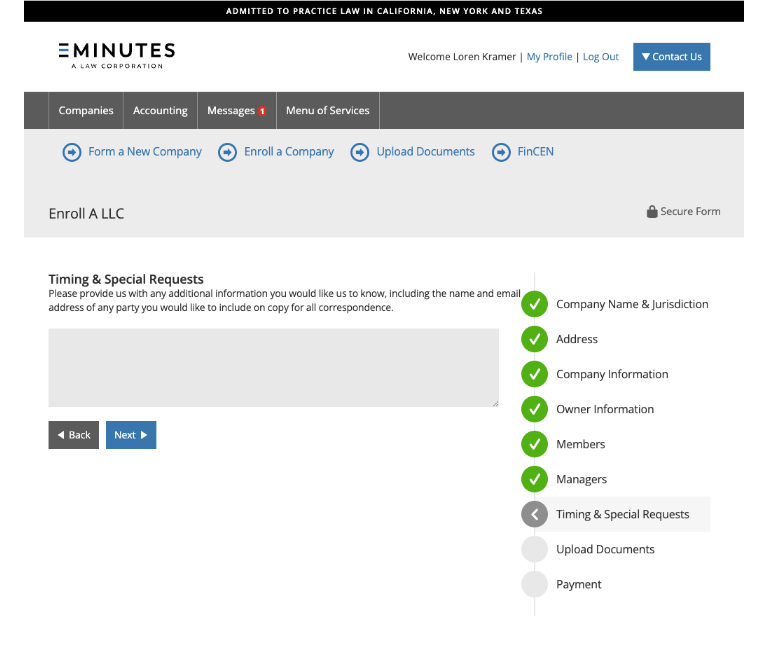
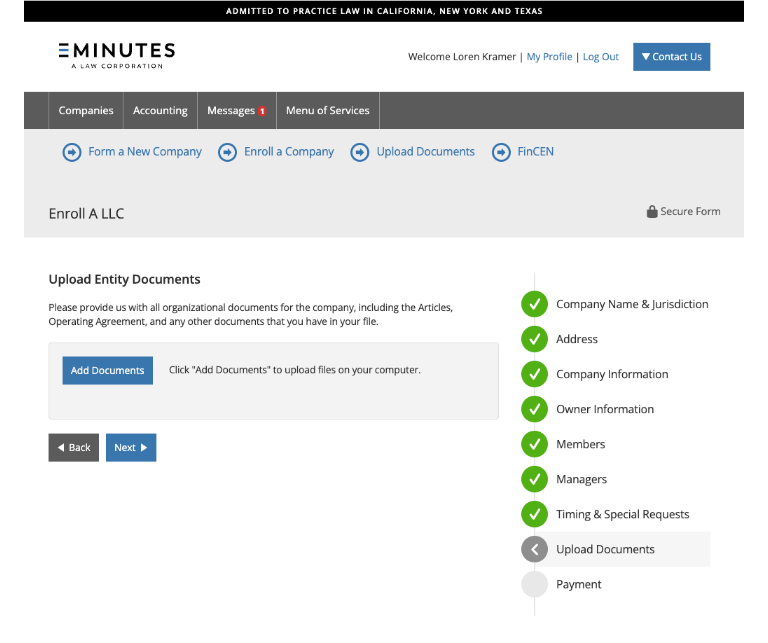
10. Use this screen to securely upload any organizational documents.
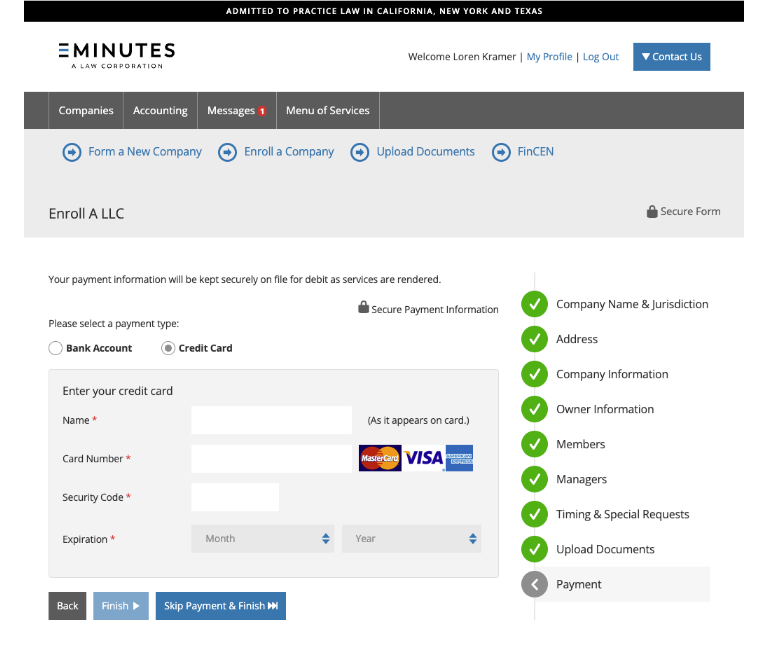
11. Finally, provide your payment information. Payment options include ACH or credit card. Your payment information will be securely stored for use when services are rendered.
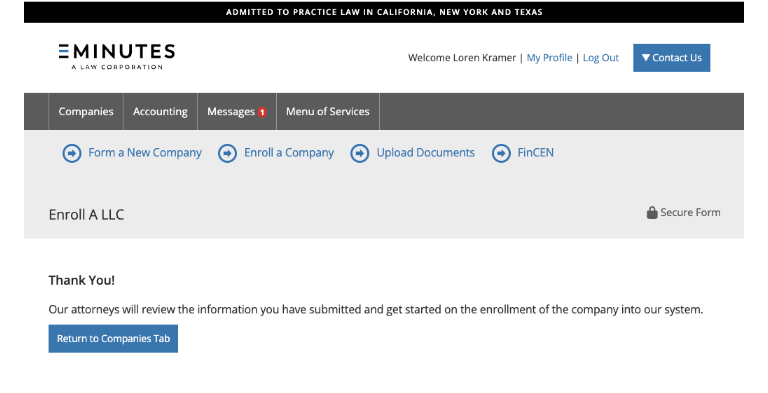
12. Once completed, our team will review your information and follow up with you to complete your enrollment.
Learn more
- Remove an entity from your portal.